Contents
the email tool that makes email marketing simple


Exporting Subscribers From Your Account
Published: · Last updated: · By Marcus Biel
In brief
Exporting subscribers from Maildroppa is a simple process: choose subscribers to export, start the export process
Maildroppa lets you export your subscribers as CSV files — whether you're backing up your audience, moving to another email marketing platform, working with your data in a spreadsheet or CRM, or generating a template for a future re-import.
The export is currently CSV only. Excel exports (.xls, .xlsx) are not yet supported.
1. Select Subscribers by Status
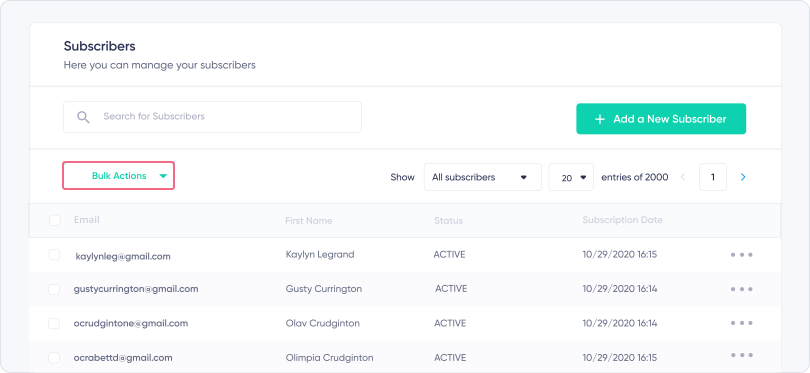
In the "Show" drop-down menu, select the status of subscribers you want to view and export (Confirmed, Pending, Unsubscribed, Bounced, or Blocked), or choose "Show all Subscribers" to see subscribers across statuses.
2. Choose Subscribers to Export
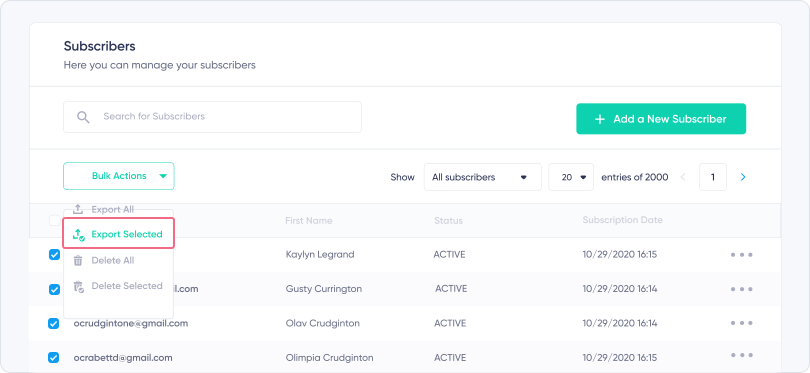
In the Bulk Actions section, you can either Export All subscribers or Export Selected subscribers.
To export specific subscribers, select them by checking the box in the left column of their row. You can select all subscribers displayed on the current page by checking the box in the header row. The number of subscribers displayed per page can be set to 20, 50, or 100, allowing you to select a different number of subscribers at once.
3. Start the Export
The export runs in the background and may take some time depending on the number of subscribers being exported.
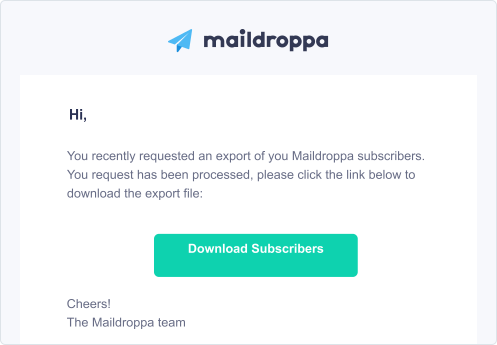
When the export is complete, you will receive an email with a link to download a zip file containing your CSV exports.
What's in the Zip File
The downloaded zip contains one CSV file per subscriber status, each named <status>-subscribers.csv. A full export ("Export All") includes every status that has subscribers in your account:
confirmed-subscribers.csvpending-subscribers.csvunsubscribed-subscribers.csvcold-subscribers.csvbounced-subscribers.csvsoft_bounced-subscribers.csvblocked-subscribers.csv
Some of these statuses (such as Cold and Soft Bounced) are managed internally by Maildroppa and do not appear as separate options in the "Show" filter on the Subscribers page.
Column Structure
Each CSV uses the following column order:
first_name,email,<active custom field keys...>,tags,Subscription Date,Notes
Column headers for subscriber fields use the field key, not the display label. If a custom field is called "Favourite Color" in the app, the exported column header is favourite_color. This is expected.
Subscription Date and Notes are export-only columns. They are included for reference but are not accepted as target fields by the Maildroppa import.
Multi-Select Fields
Each multi-select field is exported as a single column. If a subscriber has several selected values, the option labels are separated with a pipe character |:
| favourite_color | |
|---|---|
| anna@example.com | blue|yellow|red |
| ben@example.com | green|blue |
| clara@example.com | yellow |
This format is identical to the one the importer expects, so re-uploading an exported file works without reformatting (within the limits described below).
Tags
All tags are exported into a single tags column. If a subscriber has multiple tags, the tag names are separated with a pipe character |. If a subscriber has no tags, the cell is empty:
| tags | |
|---|---|
| anna@example.com | Good Customer|New |
| ben@example.com | Webinar Lead |
| clara@example.com |
What's Not in the Export
Some internal and event-based data is not included in the exported CSV files, such as:
- Confirmation IP address
- Confirmation date
- Unsubscribe date
- Last email opened date
- Bounce reason
This data stays inside Maildroppa and is not part of the subscriber data portability flow.
Encoding and Delimiter
Files are written in UTF-8 without BOM and use a comma as the column delimiter, regardless of locale.
Modern spreadsheet tools (Excel 365, Google Sheets, Numbers, LibreOffice) handle this correctly. If you use an older version of Microsoft Excel on Windows and see garbled characters (such as German umlauts) when double-clicking the file, open it via Data → From Text/CSV instead and explicitly select UTF-8 as the file origin.
Re-importing Into Maildroppa
Exporting and then re-importing is a valid workflow — for example to restore from a backup, copy subscribers between Maildroppa accounts, or use an export as a template for a structured import (see the import guide). Two limitations to keep in mind:
- The Maildroppa import UI accepts only three statuses: Confirmed, Unsubscribed, and Blocked. CSV files for other statuses (
pending-subscribers.csv,bounced-subscribers.csv,cold-subscribers.csv,soft_bounced-subscribers.csv) cannot be re-imported directly. Statuses like Bounced and Cold are rebuilt by Maildroppa from real delivery activity, not from imported flags. - The
Subscription DateandNotescolumns are ignored by the import. You can leave them in the file — the importer will simply not offer them as mapping targets.
For everything else, the export format matches the import format. Multi-select values and tags use the same pipe-separated layout the importer expects.
Practical Use Cases for the Exported Data
The CSV format is supported by virtually every tool that handles tabular data. Typical uses for exported subscriber data:
- Migration: Move your subscribers to another email marketing provider.
- CRM or database sync: Load subscriber data into a CRM, internal database, or analytics tool.
- Spreadsheet work: Open and edit subscriber data in Microsoft Excel, Google Sheets, Numbers, LibreOffice, or any text editor.
- Backup: Keep the exported files as a snapshot of your audience that you can re-import later, within the limitations described above.
- Import template: Inspect an exported file to see the exact field keys, tag format, and multi-select value format Maildroppa expects.
Your Data Is Yours
The ability to export your subscriber data at any time is a deliberate part of how Maildroppa works. You have direct access to your audience, can use the data in any tool you choose, and contact your customers through their email address — without Maildroppa standing between you and them. The export also fulfills the data portability requirements of the GDPR.
We respect your privacy. We will never sell, rent, or share your email address.
Ready to Send Better Emails?
Stop juggling bloated tools or overpriced plans. Maildroppa offers personal support, privacy-conscious controls, and powerful email marketing - starting free forever.
No credit card required. No time limit.