Contents
the email tool that makes email marketing simple


List Hygiene and Deliverability
Published: · Last updated: · By Marcus Biel
In brief
Learn how Maildroppa identifies inactive subscribers, sends re-engagement emails, marks cold contacts, cleans hygiene data, and protects deliverability.
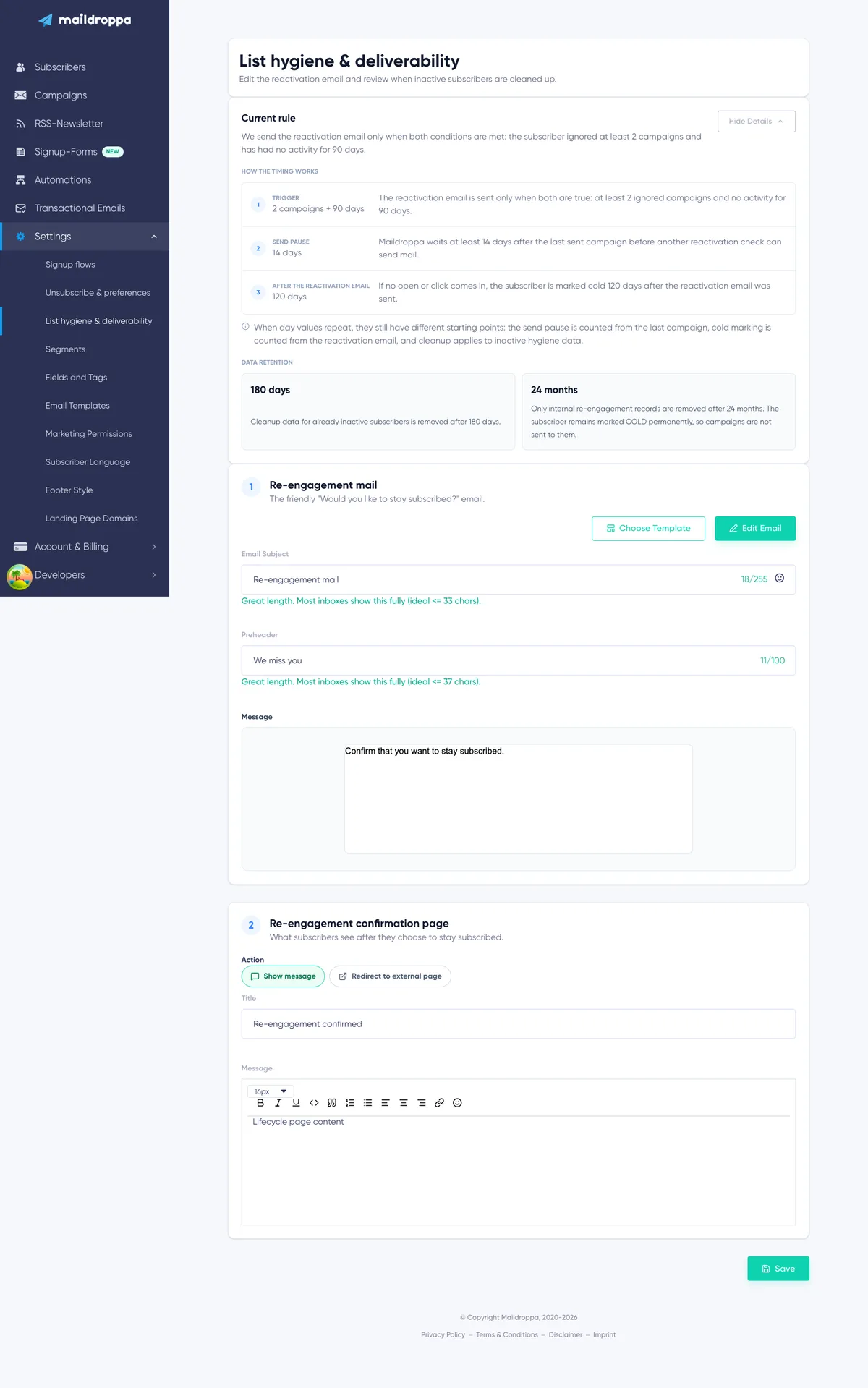
The List Hygiene & Deliverability page explains how Maildroppa handles subscribers who repeatedly receive campaigns without opening or clicking them.
It shows the current re-engagement rule, lets you customize the email that asks inactive subscribers whether they want to stay subscribed, and controls what they see after confirming that they want to remain on your list.
The purpose is to give inactive subscribers one clear opportunity to re-engage before Maildroppa marks them as cold and stops sending campaigns to them.
How List Hygiene Works
Maildroppa uses campaign deliveries, tracked opens, and tracked clicks to build an engagement history for each subscriber.
The complete process has five stages:
- Maildroppa counts delivered campaigns that receive no later open or click from the subscriber.
- When the subscriber reaches the displayed ignored-campaign threshold and has had no tracked activity for the displayed number of days, the subscriber becomes eligible for re-engagement.
- After the required send pause has also passed, Maildroppa sends the account's Re-engagement mail.
- If the subscriber opens or clicks, or uses the confirmation link to stay subscribed, Maildroppa records new engagement and keeps the subscriber active.
- If no open or click is recorded during the displayed period after the Re-engagement mail, Maildroppa marks the subscriber as
COLD. Campaigns are no longer sent to that subscriber.
The checks run automatically in the background. Saving this page does not immediately send a Re-engagement mail and does not manually mark subscribers as cold.
Why List Hygiene Supports Deliverability
Continuing to send every campaign to recipients who never engage can weaken the quality of your active list and make it harder to understand genuine campaign performance.
Maildroppa's re-engagement process avoids suppressing a subscriber after one missed campaign. It waits until several conditions are met, sends a dedicated message, and gives the subscriber time to show that they still want the emails.
Subscribers who remain inactive are retained in your account with the COLD status but are excluded from campaign sending. This reduces repeated sending to an unresponsive audience without treating inactivity as a voluntary unsubscribe.
List hygiene can support a healthier sending audience, but it does not replace relevant content, permission-based acquisition, correct authentication, or careful campaign planning.
Opening List Hygiene & Deliverability
Open “Settings” and select “List hygiene & deliverability”.
The page contains three main sections:
- Current rule
- Re-engagement mail
- Re-engagement confirmation page
The Current rule section is informational. It shows the thresholds currently used by Maildroppa, but it does not contain editable fields.
The Re-engagement mail and Re-engagement confirmation page are editable. The “Save” button at the bottom covers both of these content settings.
Understanding the Current Rule
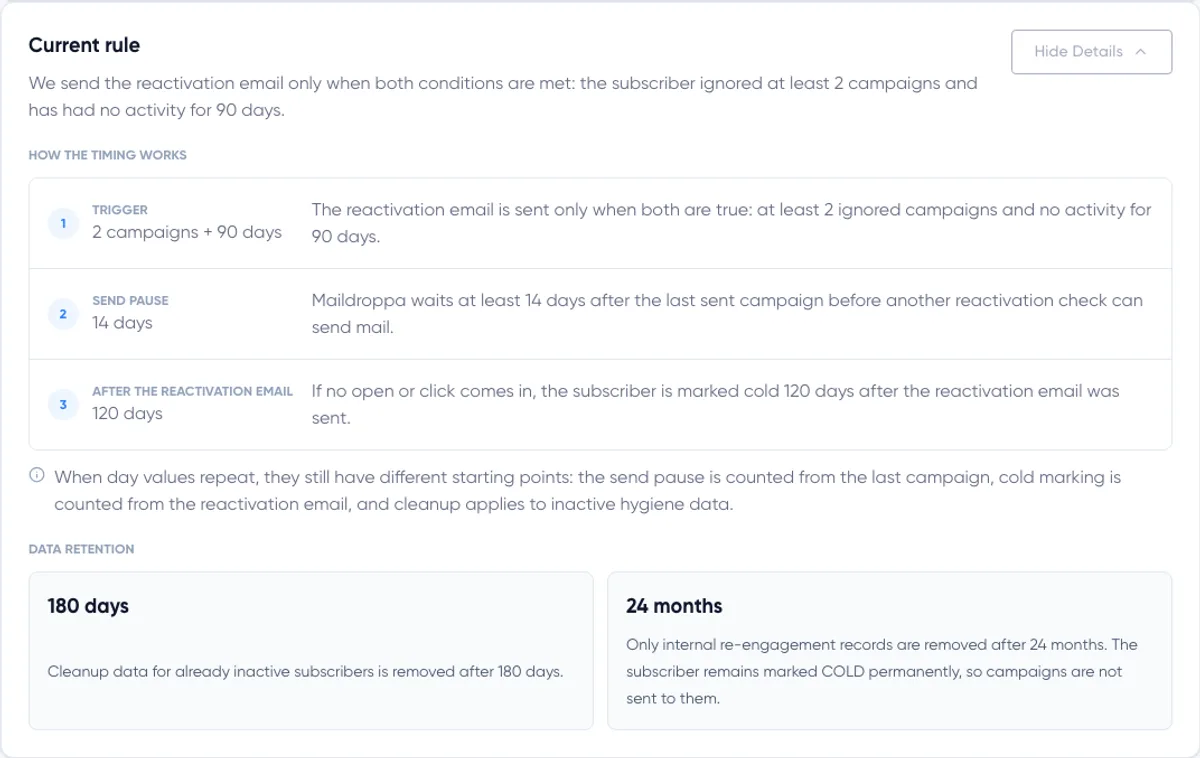
The Current rule panel summarizes when Maildroppa sends the Re-engagement mail and when an inactive subscriber becomes cold.
The summary begins with the two trigger conditions, for example:
2 campaigns + 90 days
This means that both conditions must be true. Reaching only the campaign count or only the inactivity period is not enough.
The values shown in your account may differ from this example. Always use the numbers displayed on the page as the current rule.
Click “Hide details” to collapse the timeline. Click “Show details” to open it again.
Trigger: Ignored Campaigns
The first trigger value is the number of ignored campaigns.
For this rule, Maildroppa treats a delivered campaign as ignored when it is sent after the subscriber's most recent tracked engagement and no later open or click resets the count.
For example, if the displayed threshold is two campaigns:
- Receiving one campaign without opening or clicking it is not enough.
- Receiving a second campaign without any tracked engagement reaches the campaign threshold.
- Opening or clicking a campaign resets the ignored count.
The threshold measures repeated inactivity. It is not the subscriber's lifetime number of unopened campaigns.
Trigger: No Activity for the Displayed Period
The second trigger value is the inactivity period.
Maildroppa compares the subscriber's most recent tracked open or click with the displayed number of days. The condition is met when the last engagement is older than that period or when no engagement has been recorded.
For example, “90 days” means that a subscriber must have no tracked open or click during the relevant 90-day period.
The ignored-campaign count and inactivity period work together. A subscriber who has been inactive for the required number of days but has not received enough ignored campaigns does not yet receive the Re-engagement mail.
Send Pause
The Send pause is an additional timing condition.
Maildroppa waits at least the displayed number of days after the subscriber's most recently sent campaign before another re-engagement check can send the Re-engagement mail.
This prevents the re-engagement message from following too closely after a regular campaign. Even when the two trigger conditions are already true, the mail waits until this pause has passed.
The Send pause is counted from the latest campaign. It is not counted from the subscriber's last open or click.
After the Re-engagement Mail
The third timeline item shows how long Maildroppa waits after sending the Re-engagement mail before marking the subscriber as cold.
During this period, the subscriber can show engagement by opening or clicking the email. The clearest response is to select the individual confirmation link that says they want to stay subscribed.
The confirmation action records fresh engagement, resets the ignored-campaign count, and clears the pending re-engagement state for that subscriber.
If no open or click is recorded by the time the displayed period has passed, Maildroppa marks the subscriber as COLD during an automatic processing run.
The subscriber remains stored in the account, but campaigns are no longer sent to them.
Why Similar Day Values Mean Different Things
Several values on the page may use the same unit or even show the same number. They still have different starting points:
- The inactivity period is measured from the most recent tracked open or click.
- The Send pause is measured from the most recently sent campaign.
- The cold-marking period is measured from the Re-engagement mail.
- Cleanup applies later to internal data belonging to subscribers who are already inactive.
Do not add the numbers together as one continuous countdown. Each value answers a different question in the process.
Data Retention
The Data retention section shows two housekeeping periods. These settings concern Maildroppa's internal list-hygiene records. They do not delete an active subscriber simply because the period passes.
Cleanup Data for Inactive Subscribers
“Clean up after” shows when internal re-engagement queue and engagement records for already inactive subscribers can be removed.
Inactive subscribers include cold, unsubscribed, bounced, blocked, deleted, and otherwise suppressed records.
This cleanup does not remove the subscriber from your account and does not turn a cold subscriber back into an active subscriber. It removes no-longer-needed internal processing data.
Keep Cold History
“Keep history for” shows the retention period for internal re-engagement history belonging to cold subscribers.
When that history is removed, the subscriber remains marked COLD. The status continues to prevent campaign sending.
Data retention and subscriber status are therefore separate. Removing old hygiene history does not reactivate the address and does not count as a new subscription.
Step 1: Re-engagement Mail
The Re-engagement mail is the message Maildroppa sends when all displayed eligibility and timing conditions have been met.
Its purpose is to ask one simple question: does this subscriber still want to receive your emails?
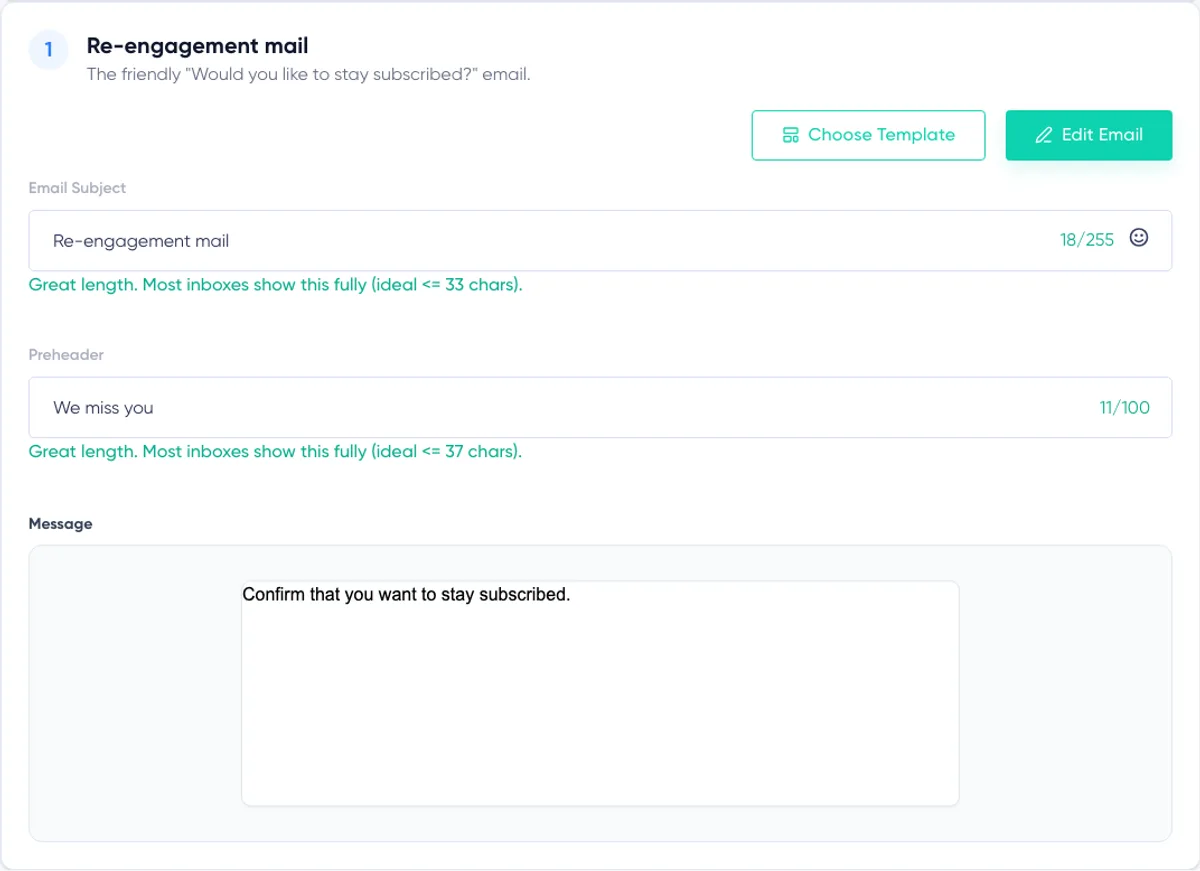
The editor contains:
- Email subject
- Preheader
- Email preview and visual editor
- Required stay-subscribed confirmation link
Email Subject
The subject should make the purpose of the email clear without sounding alarming or promotional.
Suitable examples include:
- Would you like to stay subscribed?
- Still interested in our emails?
- Confirm that you want to keep hearing from us
Avoid an ordinary campaign subject. The recipient should recognize that this email asks for a subscription decision.
The subject field supports emojis. Use them only when they fit your brand and do not obscure the purpose of the message.
Preheader
The preheader is the supporting text many email clients show next to or below the subject.
Use it to explain the action, for example:
Click once to confirm that you want to stay subscribed.
The preheader should complement the subject instead of repeating it word for word.
Choosing a Template
Click “Choose template” to open the available email templates.
Selecting a template replaces the current email design with the selected content and opens it for editing. If you already customized the Re-engagement mail, review the replacement carefully before saving.
After choosing a template, verify that it still contains the required confirmation link and that its wording describes the re-engagement decision accurately.
Editing the Email
Click “Edit email” to open the visual email editor.
You can edit the text, images, layout, colors, spacing, and confirmation button. Click “Close editor” to export the current design and return to the preview.
The preview shows the current email design inside the Re-engagement mail card. Review both desktop-oriented layout and narrow content carefully, especially when the confirmation action is placed inside a multi-column section.
Maildroppa adds the required email footer when the message is prepared for sending. Keep the main email focused on the stay-subscribed decision rather than repeating a complete campaign.
The Required Confirmation Link
The Re-engagement mail must contain a clickable link or button whose destination uses the Maildroppa confirmation variable:
{{ confirmation_url }}
Maildroppa replaces this variable with an individual confirmation URL for each recipient.
Use the variable as the destination of the button or text link. Showing it only as visible text does not create a working confirmation action.
Do not replace it with your homepage, preference center, or another normal URL. A custom URL cannot record that the subscriber wants to stay active.
If the required confirmation target is missing, Maildroppa rejects the Re-engagement mail when you try to save it.
The confirmation link is intended for the response period shown in the Current rule panel. An expired link cannot be reused to restore engagement.
Recommended Email Structure
A simple Re-engagement mail can follow this structure:
Subject: Would you like to stay subscribed?
Preheader: Confirm with one click to keep receiving our emails.
Opening: We noticed that you have not opened or clicked our recent emails.
Explanation: If you still want to hear from us, use the button below. If not, you do not need to do anything.
Button: Keep me subscribed
Be transparent about the result of not responding. Avoid implying that ignoring the email is a voluntary unsubscribe. Maildroppa marks the subscriber as cold and suppresses future campaigns; it does not record a user-requested unsubscribe.
Personalization
You can use supported subscriber personalization fields in the Re-engagement mail when the information exists reliably for your audience.
For example, a first name can make the message friendlier, but the email should still read naturally when a subscriber has no optional profile information.
Maildroppa validates personalization fields when saving. Unknown or no-longer-supported fields can prevent the message from being saved.
Spam Check
Maildroppa checks the Re-engagement mail content when it is saved.
If the spam score is too high, the page shows the reported issues and can block the save. Review the subject, wording, links, and email design, then save again after correcting the problems.
Step 2: Re-engagement Confirmation Page
The Re-engagement confirmation page controls what subscribers see after they select the confirmation link and choose to stay subscribed.
At this point, Maildroppa has recorded new engagement and reset the subscriber's ignored-campaign count. The subscriber remains eligible for campaigns.
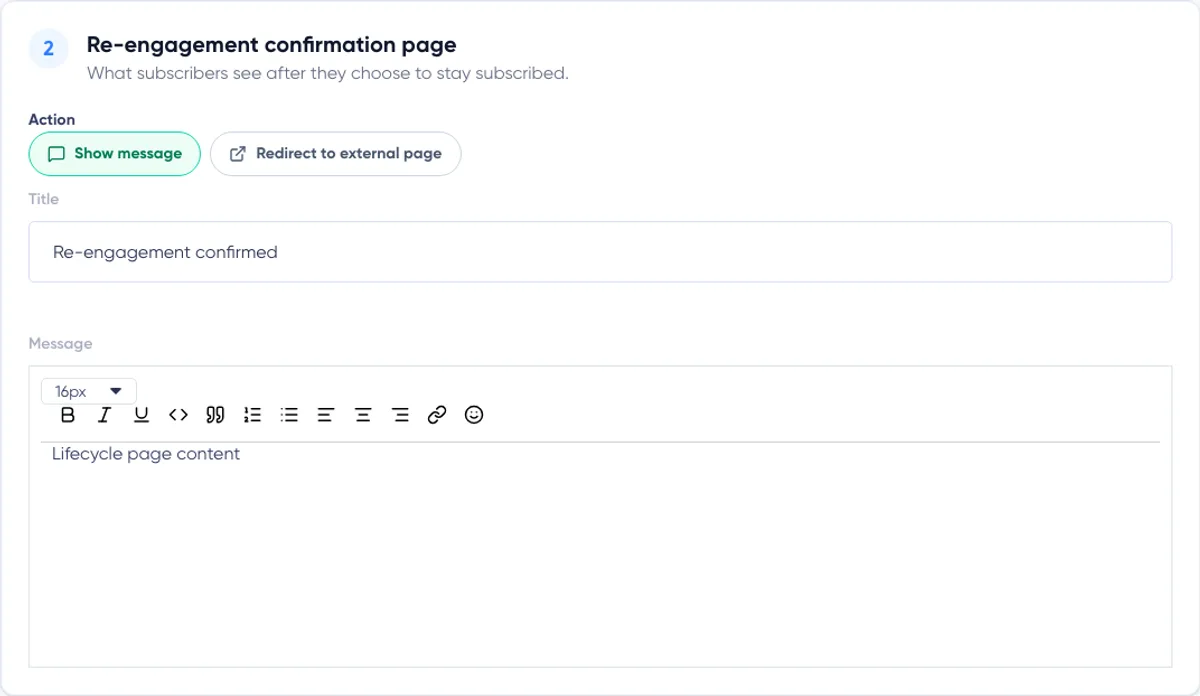
Under “Action”, choose one of two results:
- Show message
- Redirect to external page
Show Message
Choose “Show message” to display a Maildroppa-hosted confirmation response.
Enter a title and message that clearly confirm the result. For example:
Title: You are staying subscribed
Message: Thank you for confirming. You will continue to receive our emails.
The message editor supports font size, bold, italic, underline, code formatting, quotations, numbered and bulleted lists, text alignment, links, and emojis.
You can include a secondary link back to your website, but the confirmation should remain the first and clearest message on the page.
Do not ask the subscriber to confirm a second time. The re-engagement action has already been processed before this page appears.
Redirect to External Page
Choose “Redirect to external page” when the confirmation should continue on your own website.
Enter a complete HTTPS URL, for example:
https://example.com/still-subscribed
Maildroppa accepts an explicit HTTPS URL. HTTP URLs, relative paths, protocol-relative URLs, script URLs, and malformed addresses are rejected.
The destination page should immediately confirm that the subscriber will remain on the list. The redirect is the response after a successful confirmation; it is not a replacement for the individual confirmation link inside the email.
Saving the Page
Click “Save” at the bottom after reviewing both the Re-engagement mail and the confirmation page.
The Save action does not change the thresholds shown under Current rule. It saves only the editable email and page content.
Changes are not saved automatically. If the visual email editor is open, Maildroppa exports its current content as part of the save. Wait until the editor is fully loaded before saving.
When the complete save succeeds, Maildroppa shows “Changes saved.”
Validation and Common Save Problems
The most important requirements are:
- The Re-engagement mail contains a clickable
{{ confirmation_url }}target. - Personalization fields used in the subject or content are supported by the account.
- The email passes the required spam checks.
- When the confirmation action is “Redirect to external page”, a complete valid HTTPS URL is present.
If the confirmation target is missing, add it to a text link or button in the email editor and save again.
If the redirect field is empty, Maildroppa shows “Redirect URL required”. If the address is not a supported HTTPS URL, it shows “Redirect URL invalid”.
If the settings cannot be loaded, select “Retry”. The Current rule and both editable components must load before you can review the complete process.
When Changes Take Effect
Saved Re-engagement mail changes apply to future re-engagement messages. They do not alter an email that has already been delivered.
Saved confirmation-page changes apply when subscribers use their confirmation links afterward. There is no separate publishing step and no assignment to a campaign, automation, signup form, or Signup Flow.
The content is shared across the account. Use wording that works for subscribers from all campaigns rather than referring to one specific campaign unless that description is always accurate.
The Current rule values remain the operational values displayed by Maildroppa. Editing the email or page does not restart subscriber timers, reset ignored-campaign counts, or trigger an immediate hygiene run.
What COLD Means
A cold subscriber has not explicitly unsubscribed. Maildroppa assigned the status because the subscriber met the inactivity rule and did not re-engage during the response period.
The subscriber record remains available in the account, but it is suppressed from campaign sending. Deleting internal hygiene history later does not remove the COLD status.
If the person wants to receive marketing emails again after becoming cold, they need to complete a valid new signup or re-subscription journey. This creates a fresh, permission-based confirmation instead of silently reactivating the address.
Voluntary unsubscribes use a different status and journey. The request and response pages for that process are managed under Unsubscribe Preferences.
Testing and Reviewing the Experience
Use the built-in email preview to review the current design before saving. Check that:
- The purpose is clear from the subject and preheader.
- The message explains what happens when the recipient responds or does nothing.
- The confirmation button or link is easy to find.
- The confirmation target still uses
{{ confirmation_url }}. - The confirmation message or external page clearly says that the subscriber remains subscribed.
There is no manual “send now” action on this page. Maildroppa sends the Re-engagement mail only when a subscriber meets the displayed rule and the automatic processing run reaches that subscriber.
For an end-to-end review, use a controlled subscriber address that can naturally meet the displayed conditions. When the Re-engagement mail arrives, select its confirmation link and verify the configured message or HTTPS redirect.
Do not use a real customer address solely to force a test. The test changes the subscriber's real engagement state.
How This Differs from Other Settings
Signup Flows control the Double Opt-in journey for new signups and re-subscriptions. They do not control inactivity thresholds or the Re-engagement mail.
Unsubscribe Preferences control the two-page voluntary unsubscribe journey. A voluntary unsubscribe is different from being marked cold because of inactivity.
The Signup Form Builder controls how visitors join the list. It does not control how Maildroppa later identifies and suppresses inactive subscribers.
Keeping these settings separate lets you customize each subscriber journey while Maildroppa applies one consistent list-hygiene rule across the account.
Ready to Send Better Emails?
Stop juggling bloated tools or overpriced plans. Maildroppa offers personal support, privacy-conscious controls, and powerful email marketing - starting free forever.
No credit card required. No time limit.