Contents
the email tool that makes email marketing simple


Luo RSS-uutiskirjeitä blogikirjoituksista
Published: · Last updated: · By Marcus Biel
In brief
Opi muuttamaan RSS- tai Atom-syöte Maildroppa-kampanjoiksi, valitsemaan laukaisimet ja yleisöt sekä tarkistamaan julkaisut ja syötetarkistukset.
RSS-uutiskirjeet muuttavat blogin tai syötteen uudet julkaisut Maildroppan sähköpostikampanjoiksi.
Valitset lähteen, määrität, milloin uusia julkaisuja on riittävästi uutiskirjenumeron luomiseen, valitset vastaanottajat, määrität sähköpostin sisällön ja päätät, odottavatko luodut kampanjat tarkistusta vai voidaanko ne lopulta lähettää automaattisesti.
Maildroppa tarkistaa syötteen taustalla, muistaa jo nähdyt julkaisut, luo uusista julkaisuista numeroita ja tallentaa jokaisen syötettä koskevan päätöksen näkyvään lokiin.
Mitä RSS-uutiskirje automatisoi
RSS-uutiskirje toimii seuraavasti:
- Maildroppa lukee julkisen RSS- tai Atom-syötteen.
- Olemassa olevat julkaisut merkitään nähdyiksi uutiskirjeen aktivoinnin yhteydessä.
- Myöhemmissä syötetarkistuksissa tunnistetaan aidosti uudet julkaisut.
- Uudet julkaisut odottavat, kunnes valittu käynnistysehto täyttyy.
- Maildroppa luo julkaisuista tavallisen sähköpostikampanjan. Tätä luotua kampanjaa kutsutaan numeroksi.
- Numero odottaa tarkistusta tai julkaistaan määritetyn käytännön mukaisesti.
- Luotu kampanja lähetetään Maildroppan normaalin kampanjalähetysprosessin kautta.
Numero voi sisältää yhden tai useita julkaisuja. Sillä on oma numeronsa ja siihen linkitetty sähköpostikampanja, jonka voit avata RSS-uutiskirjeen tietosivulta.
Ensimmäinen numero odottaa aina hyväksyntääsi. Maildroppa ei koskaan lähetä ensimmäistä luotua kampanjaa automaattisesti, vaikka valitsisit Auto release -käytännön.
RSS-uutiskirjesivun avaaminen
Valitse päävalikosta “RSS-Newsletter”.
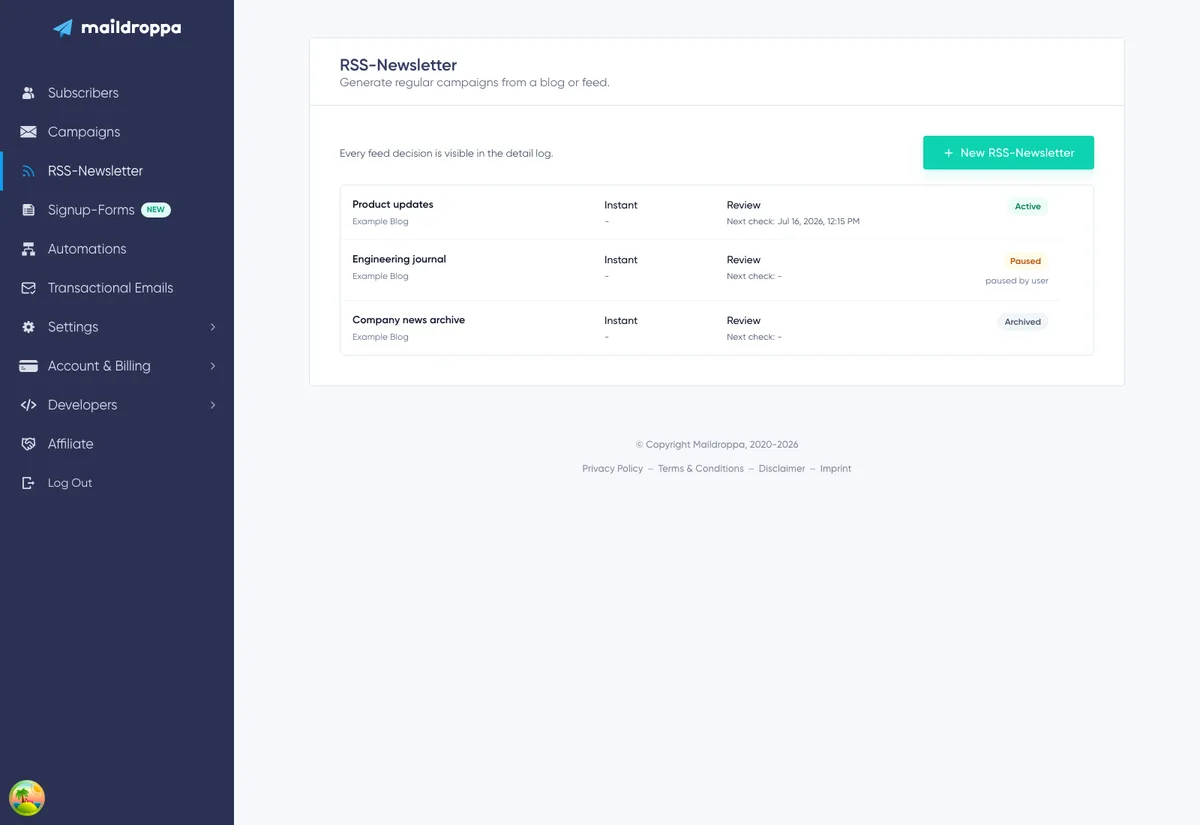
Yleiskatsauksessa näkyvät kaikki RSS-uutiskirjeet, joita ei ole arkistoitu. Jokaisella rivillä näkyy:
- Uutiskirjeen sisäinen nimi.
- Tunnistettu syötteen nimi tai syötteen URL-osoite.
- Käynnistystila ja aikataulu.
- Julkaisukäytäntö.
- Seuraava suunniteltu syötetarkistus.
- Nykyinen tila ja tarvittaessa syy, jonka vuoksi uutiskirje on keskeytetty.
Avaa tietosivu valitsemalla uutiskirjeen nimi.
Aloita viisivaiheinen määritysavustaja napsauttamalla “New RSS-Newsletter”.
Uutiskirjeen tilat
RSS-uutiskirjeellä voi olla yksi kolmesta tilasta.
Aktiivinen
Maildroppa tarkistaa syötteen automaattisesti ja voi luoda uusia numeroita, kun käynnistysehto täyttyy.
Keskeytetty
Automaattiset syötetarkistukset on pysäytetty, mutta määritys, odottavat julkaisut, luodut numerot ja tarkistushistoria ovat edelleen käytettävissä.
Uutiskirje voidaan keskeyttää manuaalisesti, pitkään jatkuneen syötevirheen jälkeen tai siksi, että Feed reset guard tarvitsee päätöksesi.
Arkistoitu
Uutiskirje ei enää vastaanota automaattisia tarkistuksia, ja se on piilotettu aktiivisesta yleiskatsauksesta. Arkistointi ei poista tallennettua määritystä pysyvästi.
RSS-uutiskirjeen luominen
Napsauta “New RSS-Newsletter”.
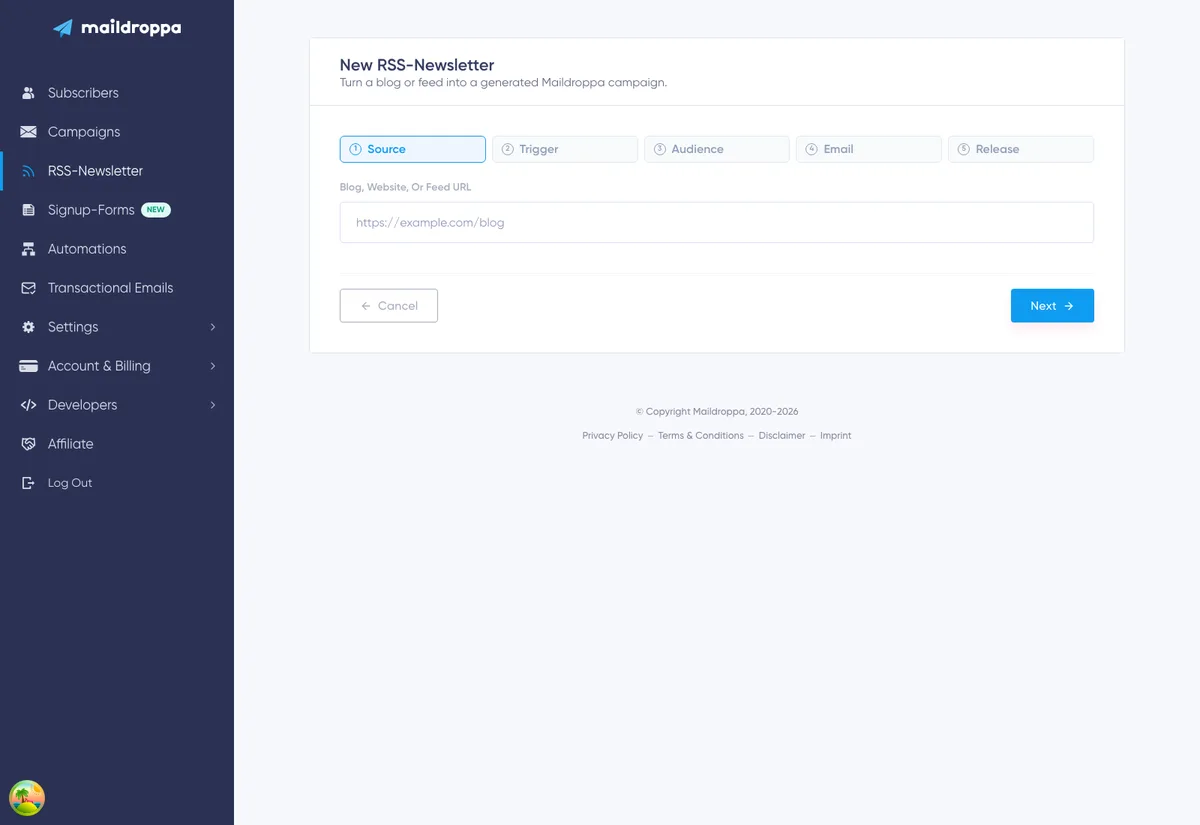
Määritysavustajassa on viisi vaihetta:
- Lähde
- Käynnistin
- Yleisö
- Sähköposti
- Julkaisu
Valitse “Next” vaiheen suorittamisen jälkeen. Voit palata aiemmin suoritettuun vaiheeseen valitsemalla sen vaihepalkista tai napsauttamalla “Back”. Vaiheet, joita et ole vielä saavuttanut, eivät ole käytettävissä.
“Cancel” ensimmäisessä vaiheessa palauttaa RSS-uutiskirjeiden yleiskatsaukseen.
Vaihe 1: Lähde
Lähde-vaiheessa kerrot Maildroppalle, mistä julkaisut löytyvät.
Syötä kohtaan “Blog, website, or feed URL” jokin seuraavista:
- Verkkosivun tai blogin sivu, joka ilmoittaa RSS- tai Atom-syötteen.
- RSS-syötteen suora URL-osoite.
- Atom-syötteen suora URL-osoite.
Esimerkiksi:
https://example.com/blog
tai:
https://example.com/feed.xml
Jos jätät protokollan pois, Maildroppa yrittää osoitetta etuliitteellä https://.
Lyhyen viiveen jälkeen Maildroppa lukee URL-osoitteen ja näyttää joko syötteen esikatselun tai luettelon sivulta löydetyistä syötteistä.
Löydetyn syötteen valitseminen
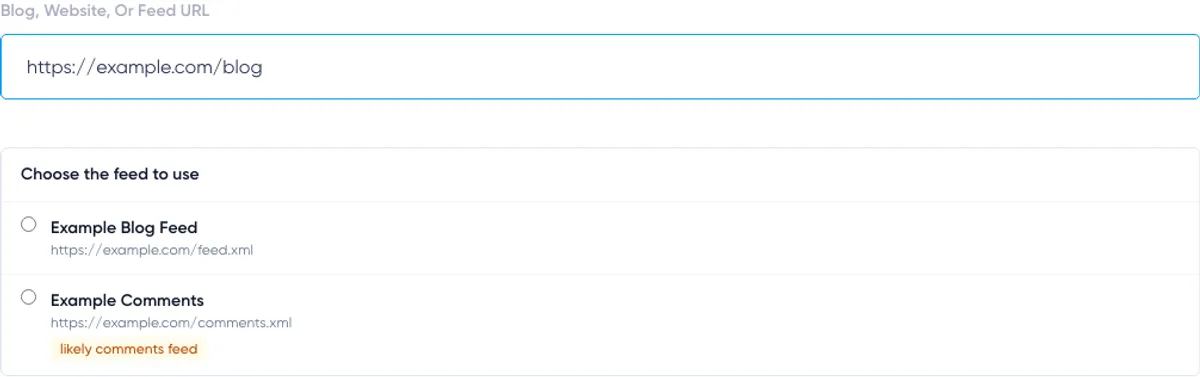
Verkkosivu voi ilmoittaa useamman kuin yhden syötteen. Blogissa voi esimerkiksi olla erillinen syöte artikkeleille ja kommenteille.
Kun syötteitä löytyy useita, Maildroppa näyttää niiden nimet ja URL-osoitteet. Valitse syöte, joka sisältää sähköpostitse lähetettävät julkaisut.
Kommentteja sisältäväksi vaikuttava syöte merkitään tekstillä “likely comments feed” ja sijoitetaan muiden vaihtoehtojen jälkeen. Tarkista URL-osoitteet huolellisesti, jotta et luo uutiskirjeitä artikkelien sijaan kommentti-ilmoituksista.
Kun olet valinnut ehdokkaan, Maildroppa lukee kyseisen syötteen ja näyttää sen viimeisimmät julkaisut.
Syötteen esikatselun tarkistaminen
Esikatselussa voi näkyä:
- Syötteen nimi
- Julkaisun nimi ja linkki
- Julkaisupäivä
- Kirjoittaja
- Kuva
- Katkelma
- Löydettyjen viimeaikaisten käyttökelpoisten kohteiden määrä
Maildroppa voi näyttää myös varoituksia esimerkiksi silloin, kun joistakin syötekohteista puuttuu käyttökelpoinen linkki, julkaisupäivä tai kuva.
Varoitus ei aina estä syötteen käyttöä. Se kertoo, mitkä sähköpostin elementit saattavat puuttua joistakin julkaisuista.
Valitse “Use this feed”, kun olet varmistanut, että esikatselussa näkyy oikea sisältö. Painikkeen tekstiksi vaihtuu tällöin “Feed selected”.
Jos syötteen nimi on saatavilla, Maildroppa käyttää sitä ehdottaakseen RSS-uutiskirjeelle sisäistä nimeä. Voit muuttaa nimeä myöhemmin Sähköposti-vaiheessa ennen uutiskirjeen luomista.
Miksi syöte on valittava?
Verkkosivuston osoitteen kirjoittaminen ei riitä, jos sivulta löytyy useita syötteitä. Valitse yksi ehdokas ja odota sen esikatselua ennen jatkamista.
Jos esikatselu latautuu vielä, Maildroppa pyytää odottamaan. Jos luettavaa syötettä ei ole saatavilla, korjaa URL-osoite tai kokeile syötteen suoraa URL-osoitetta.
Olemassa olevista julkaisuista tulee lähtötaso
Lähde-vaihe muistuttaa, että olemassa olevat syötekohteet merkitään nähdyiksi aktivoinnin aikana.
Tämä lähtötaso on tärkeä turvallisuusominaisuus. Uutiskirjeen aktivointi ei lähetä välittömästi sähköpostia kaikista syötteessä jo olevista julkaisuista. Vain aktivoinnin lähtötason jälkeen löydetyistä julkaisuista voi tulla uuden numeron sisältöä.
Vaihe 2: Käynnistin
Käynnistin määrittää, milloin odottavista julkaisuista muodostetaan numero.
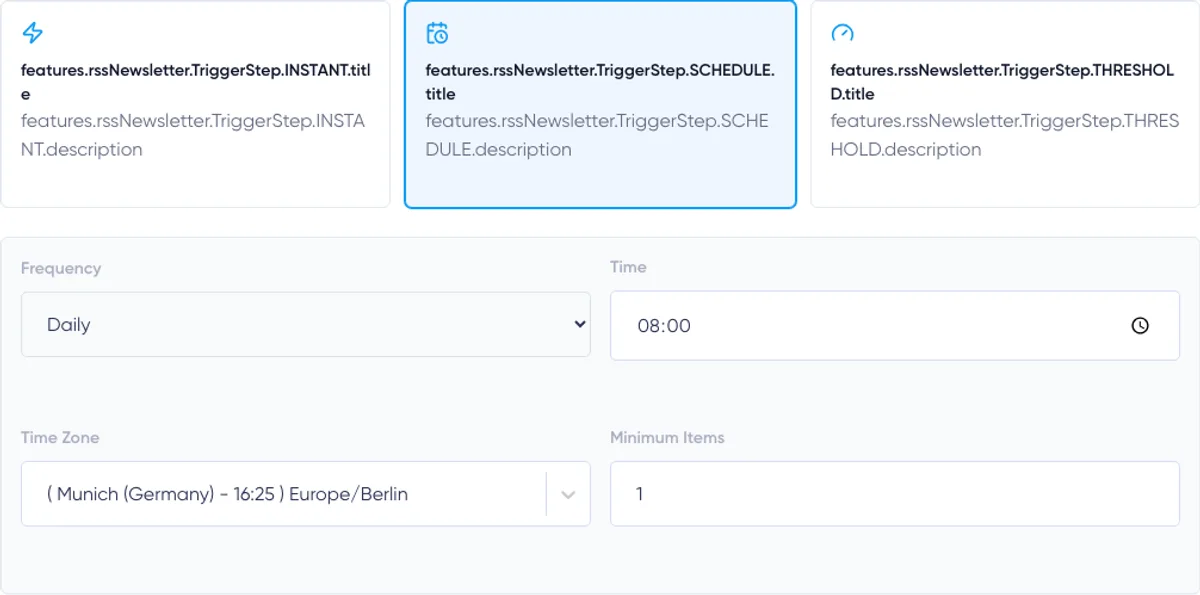
Valitse yksi kolmesta tilasta:
- Instant
- Schedule
- Threshold
Käynnistin määrittää, milloin numero luodaan. Se ei ohita julkaisukäytäntöä. Numero voi edelleen odottaa tarkistusta, vaikka käynnistin olisi luonut sen.
Instant
Instant luo numeron, kun onnistunut syötetarkistus löytää vähintään yhden uuden julkaisun.
Maildroppa tarkistaa Instant-uutiskirjeen automaattisesti noin 15 minuutin välein. “Instant” ei siis ole julkaisujärjestelmän reaaliaikainen ilmoitus. Uusi julkaisu havaitaan yleensä seuraavan suunnitellun syötetarkistuksen aikana.
Jos saman tarkistuksen aikana löytyy useita julkaisuja, ne voidaan yhdistää yhdeksi numeroksi määritettyyn kohteiden enimmäismäärään asti.
Käytä Instant-tilaa, kun jokaisen uuden julkaisun pitäisi johtaa numeroon heti, kun Maildroppa havaitsee sen.
Schedule
Schedule kerää uudet julkaisut ja luo koosteen määräaikoina.
Valitse:
- Päivittäinen, viikoittainen tai kuukausittainen toistuvuus
- Lähetysaika
- Aikavyöhyke
- Kohteiden vähimmäismäärä
- Viikoittaisen aikataulun viikonpäivät
- Kuukausittaisen aikataulun kuukaudenpäivä
Vähimmäismäärä voi olla 1–20.
Viikoittaista aikataulua varten valitse vähintään yksi viikonpäivä. Avustaja estää viimeisen valitun viikonpäivän poistamisen.
Kuukausittaista aikataulua varten valitse päivä väliltä 1–28. Valinnan rajoittaminen päivään 28 varmistaa, että aikataulu on olemassa joka kuukausi.
Maildroppa tulkitsee lähetysajan valitussa aikavyöhykkeessä. Käytä sitä aikavyöhykettä, jossa suunnittelet uutiskirjeen, erityisesti silloin, kun kesäajan muutoksilla on merkitystä.
Aikataulun mukaisena ajankohtana Maildroppa luo numeron vain, jos odottavia julkaisuja on vähintään määritetty vähimmäismäärä. Jos julkaisuja on liian vähän, ajankohta merkitään ohitetuksi ja julkaisut jäävät saataville seuraavaa ajankohtaa varten.
Käytä Schedule-tilaa säännöllisiin päivittäisiin, viikoittaisiin tai kuukausittaisiin koosteisiin.
Threshold
Threshold luo numeron, kun jompikumpi seuraavista ehdoista täyttyy:
- Odottavien julkaisujen määrä saavuttaa määritetyn määrän.
- Vanhin odottava julkaisu on odottanut määritetyn päivien määrän.
Kohteiden kynnysarvo voi olla 1–20. Enimmäisodotusaika voi olla 1–365 päivää.
Esimerkiksi viiden julkaisun kynnysarvo ja seitsemän päivän enimmäisikä tarkoittavat seuraavaa:
- Luodaan numero heti, kun saatavilla on viisi julkaisua, tai
- Luodaan numero pienemmällä julkaisumäärällä, kun vanhin julkaisu on odottanut yli seitsemän päivää.
Odotusaika alkaa, kun Maildroppa näkee julkaisun ensimmäisen kerran. Sitä ei lasketa syötteeseen merkitystä päivämäärästä.
Maildroppa tarkistaa Threshold-uutiskirjeet noin 15 minuutin välein.
Käytä Threshold-tilaa, kun haluat kohtuullisen täysiä koosteita ilman, että vähäliikenteinen syöte joutuu odottamaan loputtomasti.
Step 3: Audience
The Audience step defines who receives every generated issue.
Choose:
- “All confirmed subscribers”, or
- One saved segment from your account
Selecting a segment creates generated campaigns with that segment as their audience filter.
Use a segment when the feed content is relevant only to part of your list, such as subscribers interested in one product, language, publication, or topic.
If the segment list cannot be loaded, the assistant displays a warning and lets you continue with all confirmed subscribers. Do not proceed with that fallback unless sending to the complete confirmed audience is intentional.

Step 4: Email
The Email step controls the internal name, subject, surrounding text, and RSS items block used for generated campaigns.
The right-hand preview shows recent feed items with the current RSS block settings. It is a focused preview of the generated post cards, not a complete inbox rendering of the final campaign.
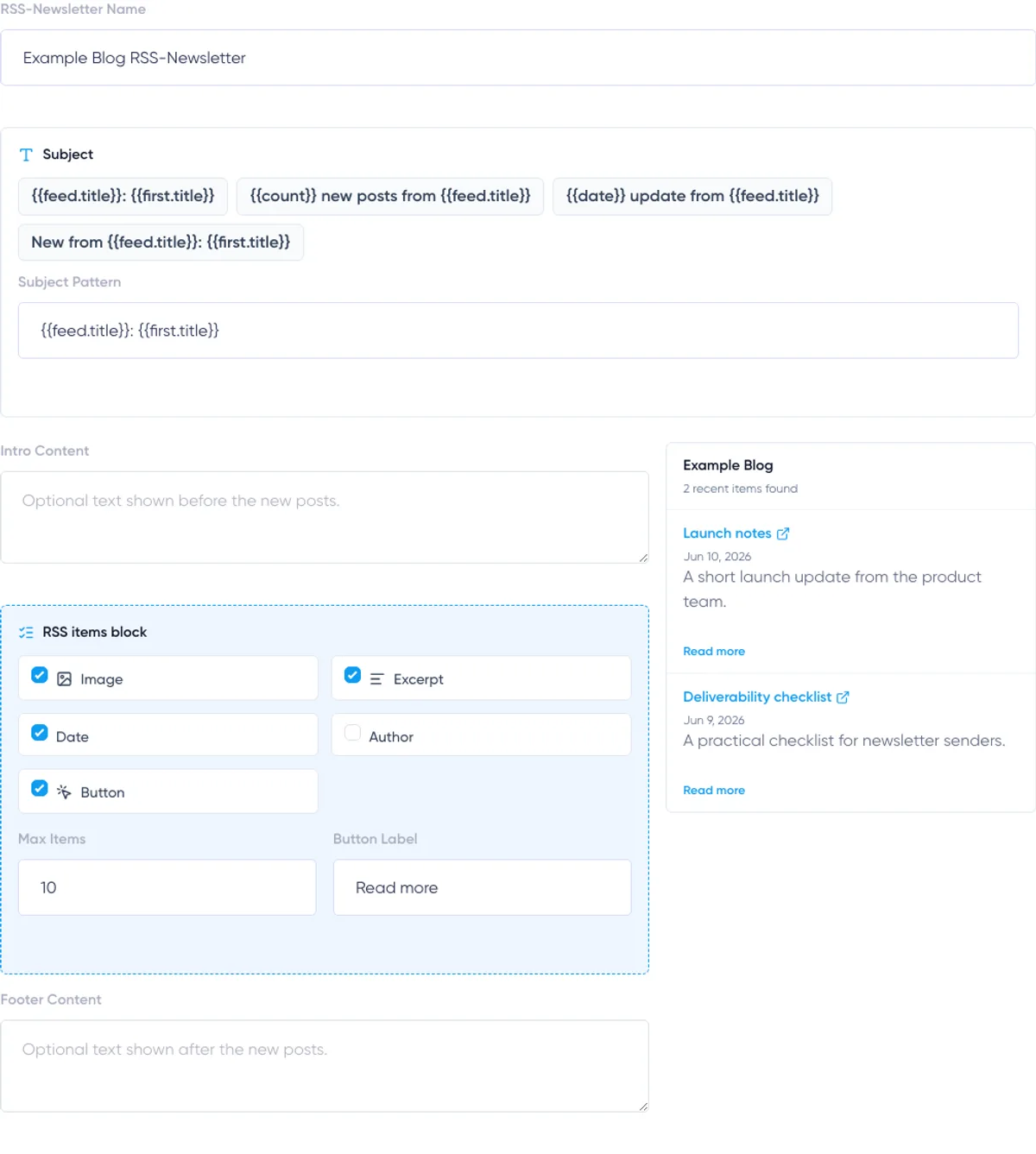
RSS Newsletter Name
The name identifies the automation inside Maildroppa. It appears in the RSS Newsletter overview and as the title of the detail page.
It is not used as the email subject.
Use a descriptive name such as:
- Product Blog Weekly Digest
- Company News RSS Newsletter
- German Knowledge Base Updates
Subject Pattern
The subject pattern creates the subject for each generated campaign.
You can select one of the preset patterns or enter your own pattern. These variables are supported:
{{feed.title}}— Feed title; the RSS Newsletter name is used when no feed title exists.{{first.title}}— Title of the first post in the issue.{{count}}— Number of posts included in the issue.{{date}}— Current date formatted for the account's locale and time zone.
Examples:
{{feed.title}}: {{first.title}}
{{count}} new posts from {{feed.title}}
{{date}} update from {{feed.title}}
Keep the subject useful even when a feed title or post title is long. The first item is the newest selected waiting post.
Intro Content
Intro content is optional text placed before the generated post cards.
Use it for a short recurring greeting or explanation. The field accepts plain text. Separate paragraphs with a blank line.
Do not write content that only makes sense for one issue, because the same intro is reused every time.
RSS Items Block
Every RSS Newsletter contains one required RSS items block. Maildroppa replaces this block with the selected posts when an issue is created.
You can show or hide:
- Image
- Excerpt
- Publication date
- Author
- Read-more button
The title and link remain part of each post card.
Feed excerpts are converted to safe plain text and shortened in the generated email. The RSS Newsletter does not copy an entire article into the email.
Images, authors, and publication dates appear only when both conditions are true: the element is enabled and the feed provides a usable value.
Maximum Items
“Max items” controls the largest number of posts placed in one issue. It can be between 1 and 20.
When an issue is created, Maildroppa selects up to this maximum from the waiting posts. Additional waiting posts from that cut are marked as overflow and are not carried into a later issue.
Choose this value carefully. It should normally be at least as high as the Schedule minimum or Threshold item count. If a feed can publish many posts between checks, use a maximum that avoids dropping content you still want to email.
Button Label
The button label is required even when the Button display option is currently disabled.
Use a short action such as “Read more”, “View article”, or “Open post”. Every button links to the corresponding post URL from the feed.
Footer Content
Footer content is optional text placed after the generated post cards. Use it for a recurring closing message.
Maildroppa adds the standard account email footer when each issue is prepared. The legal sender information, profile link, and unsubscribe action therefore do not need to be recreated in this field. Its appearance follows the Footer Style configured for the account.
Step 5: Release
The Release step controls what happens after Maildroppa creates an issue and its linked campaign.
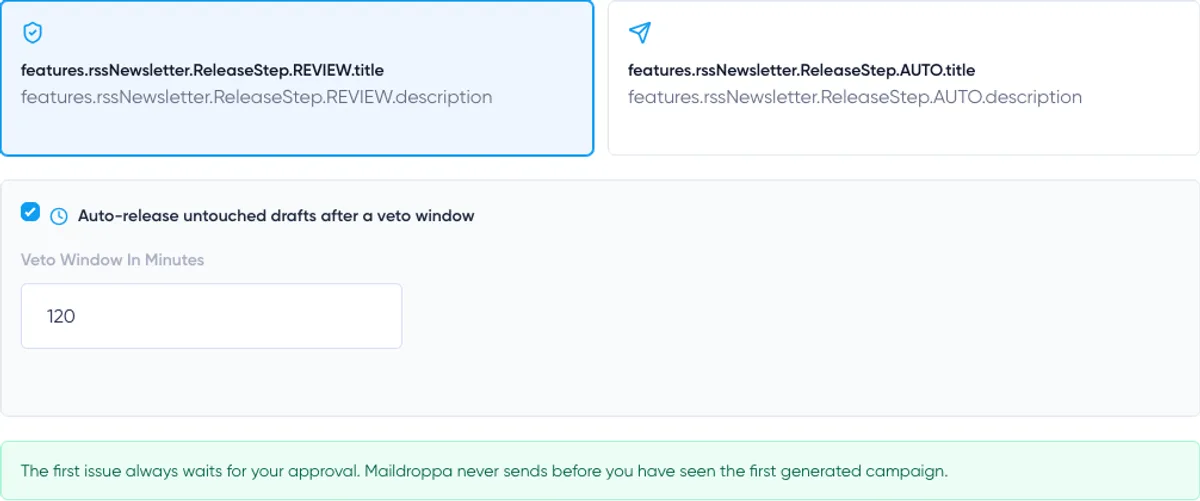
Choose Review or Auto.
Review
Review creates a normal campaign that waits for your decision.
You can open the campaign, inspect it, make changes, send it manually, or cancel the issue.
You can optionally enable “Auto-release untouched drafts after a veto window”. Enter a review period between 15 minutes and 10,080 minutes, which is seven days.
After the first issue has been approved, later untouched drafts receive a release deadline. If no one changes the campaign before that deadline, Maildroppa releases it automatically.
Editing a generated campaign counts as a veto. Its automatic deadline is removed, and the issue continues waiting for manual release. This lets you make corrections without racing against the original timer.
Disable automatic release when every issue must be approved manually.
Auto
Auto sends later issues through the normal campaign sending process immediately after they are generated.
The first issue is the exception. It always waits for manual review and release. Only after the first issue has been released can later issues use automatic sending.
Choose Auto only after the feed, audience, subject pattern, and email layout have been tested carefully.
The First-Issue Safety Rule
The first generated issue never has an automatic review deadline and never bypasses approval.
Use this first issue to verify:
- The feed produces the expected posts.
- The audience is correct.
- Subject variables create a sensible subject.
- Images and excerpts look good.
- The intro, post cards, footer content, and account footer work together.
- Links point to the correct articles.
After you manually release it, Maildroppa records that the first issue has been approved. The selected Review or Auto behavior can then apply to later issues.
Creating and Activating
On the Release step, click “Create and activate”.
Maildroppa first saves the RSS Newsletter and then reads the selected feed again to activate it.
During activation:
- The feed's current posts are recorded as the baseline.
- Existing posts are marked as seen rather than queued for an issue.
- The newsletter becomes Active.
- The first automatic check and, for scheduled newsletters, the next issue slot are planned.
- An “Activated baseline” entry is added to the Feed check log.
After activation, Maildroppa opens the detail page.
If activation cannot read the feed, check whether a paused newsletter was still created in the overview before repeating the complete setup.
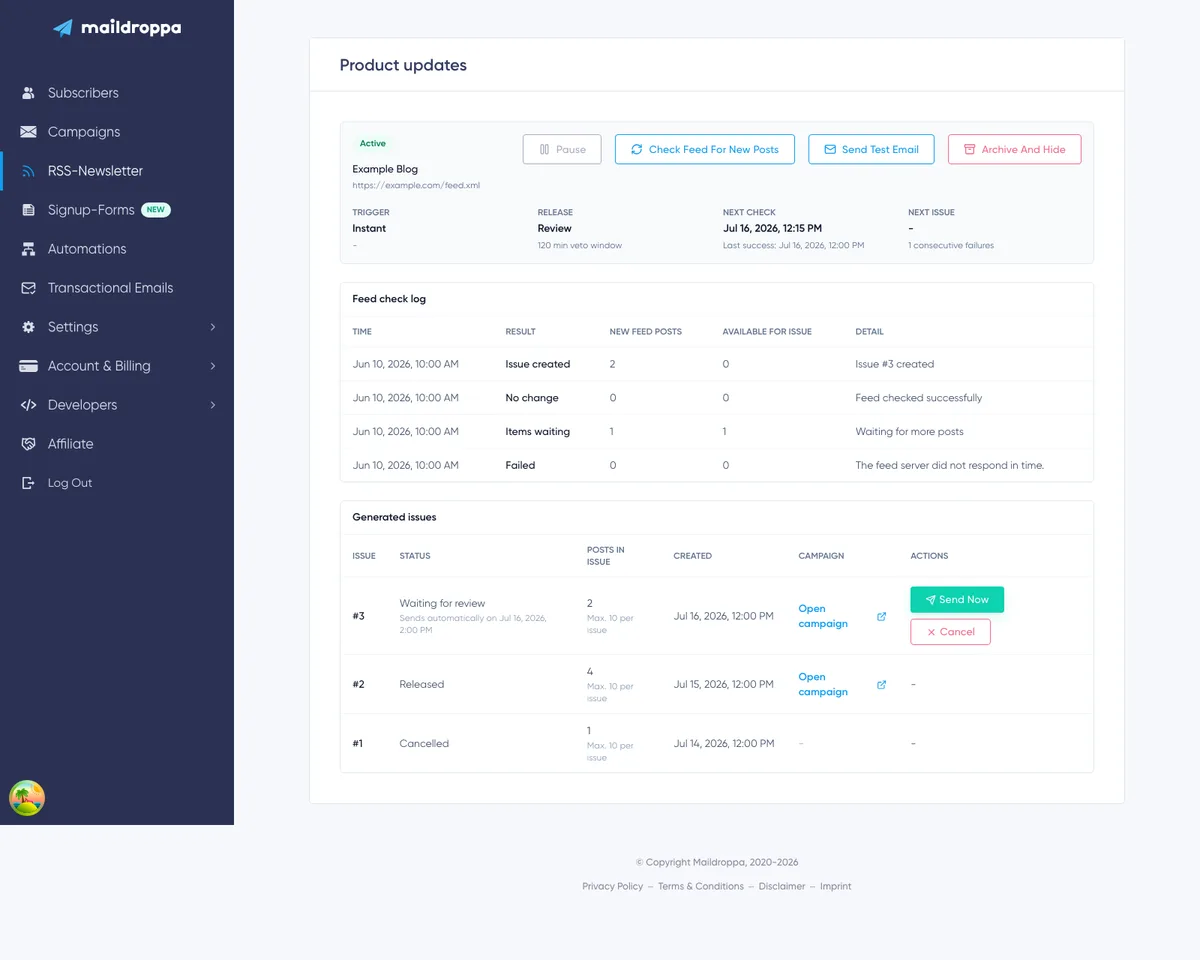
Understanding the Detail Page
The detail page uses the RSS Newsletter name as its title.
The overview panel shows:
- Active, Paused, or Archived status
- Paused reason, when applicable
- Number of feed posts currently available for an issue
- Feed title and URL
- Trigger mode and schedule
- Release policy and veto window
- Next check and last successful check
- Next issue time and consecutive failure count
Below the overview are the Feed check log and Generated issues sections.
Available Newsletter Actions
The available buttons depend on the newsletter's current state.
Activate
Activate appears for a saved newsletter that has never completed activation.
It reads the feed, creates the baseline, and starts automatic checking.
Pause
Pause stops future automatic feed checks. It does not delete waiting posts, issues, or history.
Use Pause before maintenance or when you temporarily do not want Maildroppa to create more issues.
Resume
Resume makes a manually paused or feed-failure-paused newsletter Active again and schedules a new check.
Posts already waiting remain available. Resuming does not create a new activation baseline unless you use the special Feed reset action described below.
Check Feed for New Posts
“Check feed for new posts” runs a feed check immediately instead of waiting for the next planned check.
The action is available for Active and Paused newsletters. A manual check uses the normal trigger logic, so it can add waiting posts or create an issue even while automatic checking is paused.
Use it after publishing a new post, fixing a feed problem, or testing the configured trigger. Review the new Feed check log entry afterward.
Send Test Email
“Send test email” sends a rendered example to the email address of the current Maildroppa account.
The test uses the saved template, RSS items block, standard account footer, and the normal campaign test-send path.
Maildroppa first tries to use current items from the live feed. If the feed is empty or temporarily unavailable, it uses one sample post so the email layout can still be tested.
The temporary test campaign is removed after the test and does not remain in the normal campaign list.
The test does not create or release an RSS issue, and it does not send to the configured newsletter audience.
Archive and Hide
“Archive and hide” stops future feed checks and removes the RSS Newsletter from the active overview.
The confirmation dialog explains that archiving is not permanent deletion.
Use Archive only when you no longer need the newsletter in the active list. Use Pause when you expect to continue later.
The detail page is operational rather than a configuration editor. To change the feed, trigger, audience, recurring email content, or release policy through the current interface, create a replacement RSS Newsletter, verify it, and then pause or archive the old one.
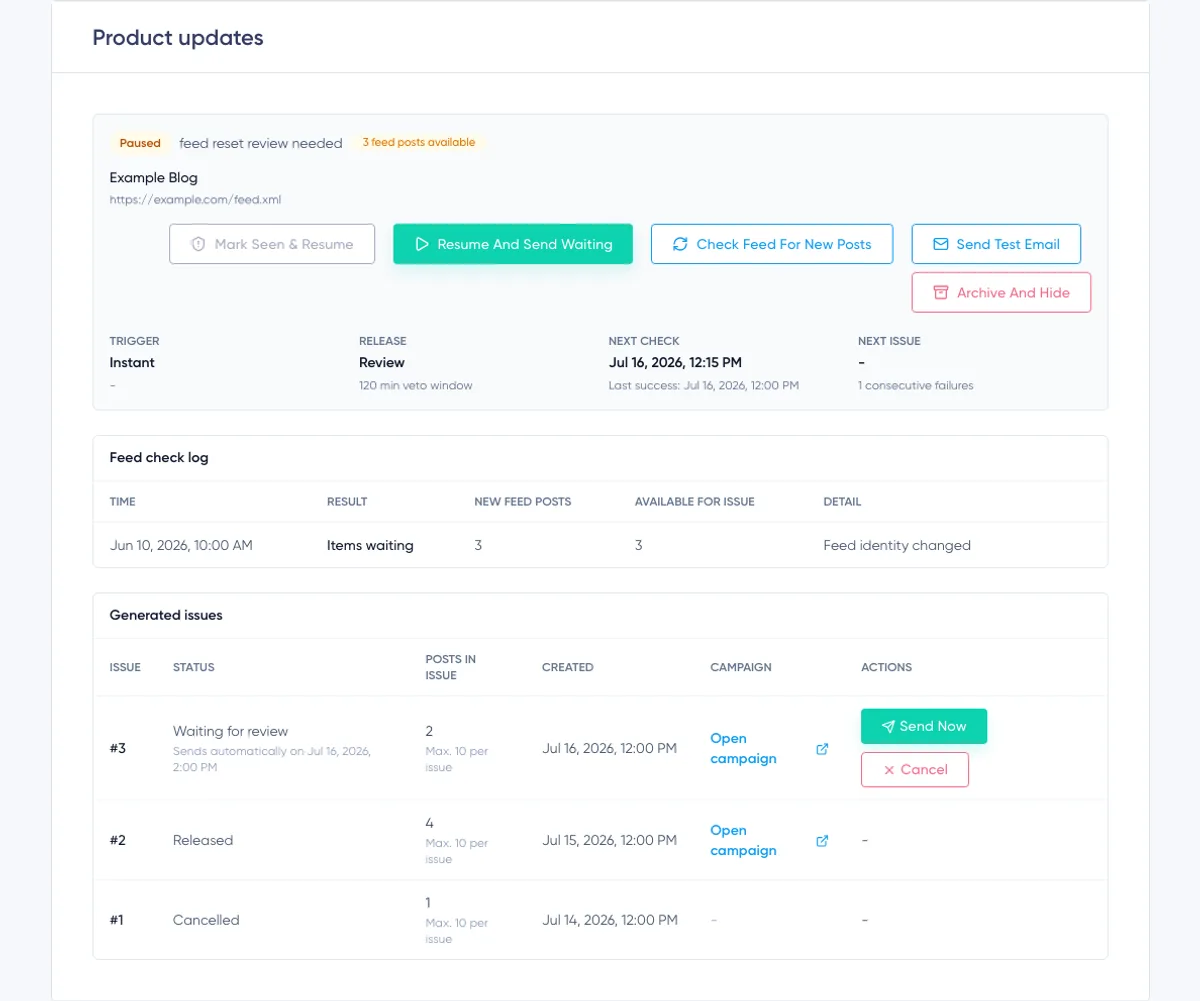
Handling a Feed Reset
Some feeds suddenly change their item identifiers, remove publication dates, or expose a large part of their archive as if it were new.
Sending all of those posts could create an unexpected archive blast. Maildroppa therefore uses a Feed reset guard. When a suspicious group of old or undated items appears, the newsletter is paused with the reason “feed reset review needed”.
The waiting posts remain available so you can decide what they mean.
Two actions appear:
Mark Seen & Resume
This marks all currently waiting posts as seen, discards them from future issues, and resumes automatic checking.
Choose this when the waiting items are old archive posts or duplicates that should not be emailed.
Resume and Send Waiting
This keeps the waiting posts and resumes automatic checking. They can be used when the trigger next creates an issue.
Choose this only after confirming that the waiting posts are genuinely new and should be sent.
Automatic Pausing After Feed Failures
Maildroppa records consecutive failed feed checks and when the current failure period began.
A successful feed check resets the consecutive failure count. If the feed continues failing for more than seven days, Maildroppa pauses the newsletter with the reason “feed failing” and stops automatic checks.
Fix the feed first, use “Check feed for new posts” to confirm that it can be read, and then select “Resume”.
Common feed failures include an invalid or blocked URL, an unreachable server, a timeout, an unreadable response, an oversized response, or a website page that does not declare a feed.
Understanding the Feed Check Log
The Feed check log is the audit trail for feed decisions.
It shows ten entries per page with controls for older and newer pages. Each row contains:
- Time
- Result
- New feed posts found during that check
- Total posts available for an issue afterward
- Detail or a human-readable error
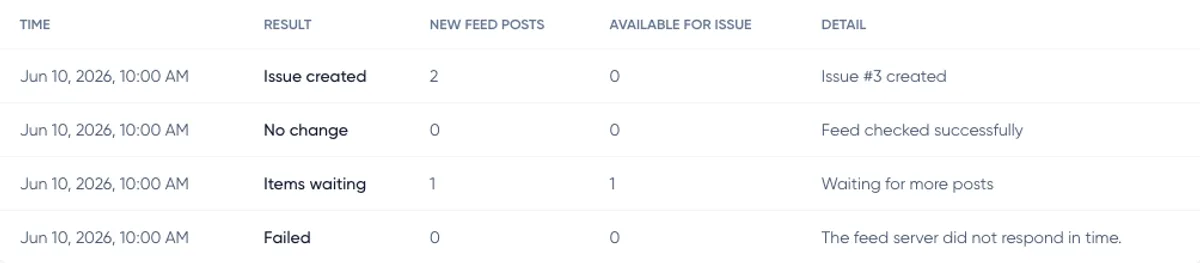
Activated Baseline
The initial feed items were recorded as already seen during activation. They will not be included in a new issue.
No Change
The feed was read successfully, but no new usable post was found and nothing is waiting.
Items Waiting
New or previously detected posts are waiting, but the current trigger condition is not yet due.
Issue Created
The trigger condition was met and Maildroppa created a generated issue and linked campaign.
Slot Skipped
A scheduled issue time arrived, but fewer than the configured minimum number of posts was available. The posts remain waiting for a later scheduled slot.
All Items Filtered
Feed items were found, but none were eligible to become waiting issue content.
Feed Reset Guard
Maildroppa detected a suspicious group of old or undated items, kept them waiting, and paused the newsletter for your decision.
Failed
The feed could not be checked successfully. The Detail column explains the reason when it is known.
Feed check history is retained for 90 days, while at least the newest 200 check records per RSS Newsletter are preserved for the operational audit trail.
Understanding Generated Issues
The Generated issues table shows ten issues per page.
Each row contains:
- Issue number
- Status
- Number of posts in the issue
- Configured maximum posts per issue
- Creation time
- Link to the generated campaign
- Available actions
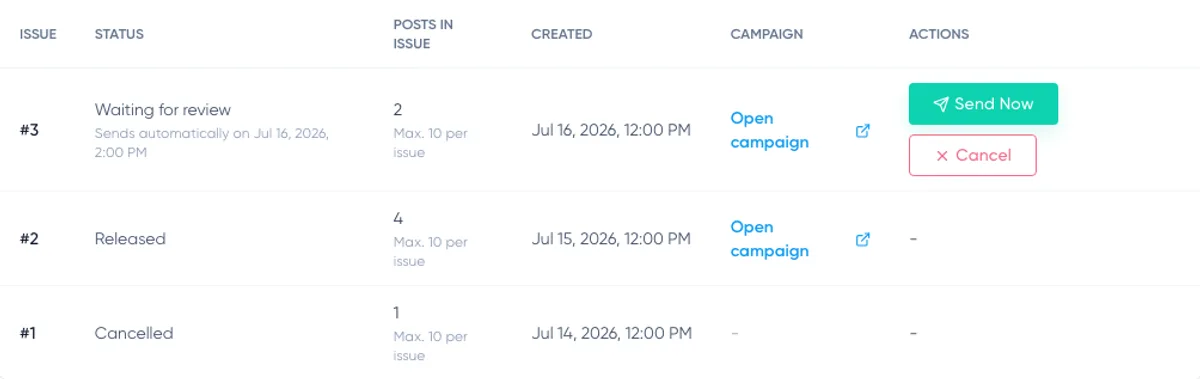
Waiting for Review
The issue has a generated campaign but has not yet been released.
The row shows either the automatic release time or that it waits for manual release.
Select “Open campaign” to review or edit the generated campaign. Select “Send now” to release it immediately after confirming the action.
Released
The issue has been handed to the normal campaign sending process. No further issue action is available.
Cancelled
The generated campaign was discarded. Its posts remain marked as consumed and do not return in a later RSS issue.
Select Cancel only when the complete issue should be abandoned. If the content needs correction but should still be sent, open and edit the campaign instead.
Reviewing and Releasing an Issue
For an issue waiting for review:
- Select “Open campaign”.
- Review the subject, content, audience, sender settings, links, and footer.
- Make corrections if necessary.
- Return to the RSS Newsletter detail page.
- Select “Send now”.
- Confirm the release.
The detail page reports that the issue is being sent. The generated campaign then follows Maildroppa's normal sending gates and status flow.
If a Review issue had an automatic deadline and you edited its campaign, the deadline is cleared. Release that edited issue manually when it is ready.
How Maildroppa Decides Which Posts Are New
Maildroppa stores feed item identities so the same post is not intentionally selected again on every check.
It uses feed identifiers and normalized post URLs to recognize posts. It also avoids treating a post as new merely because the feed changed its identifier while keeping the same article URL.
Additional safeguards include:
- Posts already present during activation are consumed as the baseline.
- Posts published more than 30 days ago are treated as stale when first discovered later.
- Posts dated more than ten minutes in the future are not accepted during that check.
- Feed entries without a usable article link are discarded.
- Posts already consumed by an issue, cancellation, reset decision, overflow, or another safety rule do not return in later issues.
These rules favor predictable sending over attempting to email every historical feed entry.
Feed URL and Response Requirements
Maildroppa accepts public HTTP and HTTPS feed sources. HTTPS is recommended.
The source must:
- Use a public hostname.
- Use port 80 or 443.
- Avoid embedded username and password information.
- Return a readable RSS, Atom, or HTML discovery page.
- Complete the request within the feed-fetching time limit.
- Keep the response at or below 3 MB.
Localhost, private-network destinations, and other blocked network ranges are rejected for security reasons.
Maildroppa follows up to three redirects and checks every redirected destination again. A redirect without a destination or a longer redirect chain is treated as unreachable.
The feed reader supports HTTP caching information such as ETag and Last-Modified. A correctly configured feed can therefore report that nothing has changed without repeatedly returning its complete content.
Troubleshooting
No Feed Is Found for the Website URL
The page must declare an RSS or Atom feed through its HTML metadata. Try the direct feed URL instead, commonly ending in /feed, /rss, .xml, or .atom.
If several choices appear, avoid a feed marked as a likely comments feed unless comments are really the intended source.
The Feed Preview Cannot Be Read
Check that the URL is public and opens without authentication. Maildroppa cannot use a local address, a private server, an unsupported port, or a response larger than 3 MB.
Also verify that the response is valid RSS or Atom rather than a browser error page, security challenge, or login form.
Existing Posts Do Not Create an Issue
This is expected immediately after activation. Existing items form the safety baseline and are marked as seen.
Publish a genuinely new feed item or wait for the next new post, then use “Check feed for new posts” if you do not want to wait for the next automatic check.
A Scheduled Slot Is Skipped
Check the minimum-items setting. If fewer posts are waiting, the slot is skipped and the posts remain available for the next scheduled time.
Posts Are Waiting but No Issue Is Created
Review the trigger:
- Instant waits for the next successful check.
- Schedule waits for a configured slot and the minimum item count.
- Threshold waits for the item count or oldest-item age condition.
The detail page shows the next issue time for a scheduled newsletter and the waiting-post count for every trigger.
The First Issue Does Not Send Automatically
This is the required first-issue safety rule. Open the generated campaign, review it, and use “Send now”. Later issues can follow the selected Review or Auto policy.
An Edited Draft Does Not Auto-Release
Editing is treated as a veto. The automatic deadline is removed so the changed campaign cannot be sent without another explicit decision.
Use “Send now” when the edited campaign is ready.
The Newsletter Paused Because the Feed Is Failing
The feed has remained unsuccessful for an extended period. Fix the feed, run a manual check, and Resume the newsletter.
The Newsletter Paused for Feed Reset Review
Inspect the waiting posts before choosing an action:
- Choose “Mark seen & resume” for old or duplicate archive content.
- Choose “Resume and send waiting” for genuine new posts.
The Test Email Contains a Sample Post
Maildroppa could not retrieve usable live feed items for the test, so it used a sample item to keep the layout testable. Fix the feed before relying on production issue generation.
Recommended Setup Checklist
Before relying on an RSS Newsletter, confirm all of the following:
- The selected feed contains articles rather than comments or unrelated content.
- The preview has stable article links and useful titles.
- Existing items can safely become the activation baseline.
- The trigger matches the feed's publishing frequency.
- Schedule minimum or Threshold count does not exceed the Max items value.
- The selected time zone and scheduled days are correct.
- The audience is intentionally all confirmed subscribers or the correct segment.
- Subject variables produce a useful subject with real feed data.
- Missing images, dates, or authors do not break the layout.
- The button label and article links are correct.
- A test email arrives at the account email address and looks complete.
- The first generated campaign is reviewed carefully before release.
- The Feed check log is monitored after activation and after feed-platform changes.
With this setup, RSS Newsletters can turn a regularly updated blog into a controlled campaign workflow while keeping feed decisions, generated issues, review actions, and sending safety visible inside Maildroppa.
Ready to Send Better Emails?
Stop juggling bloated tools or overpriced plans. Maildroppa offers personal support, privacy-conscious controls, and powerful email marketing - starting free forever.
No credit card required. No time limit.